
Introduction
An agentic coding platform is a tool that lets an AI work on code with you: reading files, making changes, and running commands on your computer. If that sentence is new to you, start with our guide on what agentic coding is and come back here when you are ready to install one.
This guide walks you through installing OpenCode, signing in, and choosing an AI model. You only need to do this once, and you can do the whole thing without spending any money.
Why we recommend OpenCode
There are several good agentic coding tools, including Claude Code (Anthropic) and Codex (OpenAI). They are all broadly similar to use, so nothing you learn is wasted if you switch later. That said, we recommend OpenCode while you are learning, for three reasons:
- You can use it for free. It is currently the only tool of its kind with a reliable, stable, genuinely usable free tier, and that tier is unlikely to disappear.
- It works with almost any AI model. You can start with the free models and try more advanced ones later if you want to explore, all without changing tools.
- It runs in the terminal, which is how most professional developers use these tools, so you are learning the "real" way. And you can run it inside VS Code so it sits right next to your code.
You can use OpenCode in two ways, and this guide sets you up for both:
- On its own, in any terminal window.
- Embedded in VS Code, where it opens in a panel beside your code and can see which file you are working on. This is what we recommend: you watch the agent's changes appear in your editor as it makes them. (No idea what VS Code is? It is our recommended code editor.)
What it costs
OpenCode itself costs nothing. What you can choose to pay for is the AI model that does the thinking. When you connect OpenCode to a model, you will see two options from the OpenCode team:
- Zen offers a handful of models at no cost. They are free because the companies behind them are promoting them, which means the selection rotates over time, and your conversations may be used to help improve the models. That is a fine trade-off for learning exercises, but do not paste anything private or personal into them.
- Go is a subscription: $10/month (with the first month at $5) for generous access to a much stronger set of models. You do not need this on day one. Start with Zen's free models, and upgrade if you find yourself hitting their limits.
Which model should I choose?
If you are not sure what a "model" even is, our guide to key agentic coding concepts explains it properly. The short version: the model is the actual AI "brain", and different models are smarter, faster, or cheaper than others.
Inside OpenCode you can switch models at any time by typing /models. Our advice:
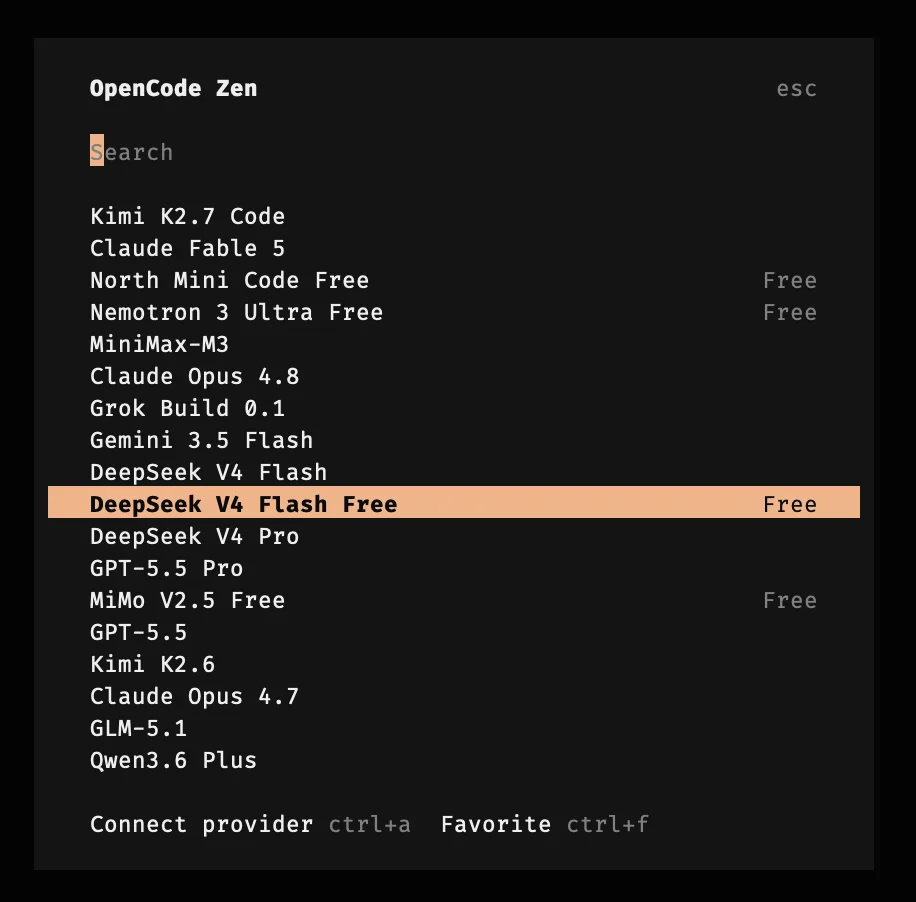
- On the free tier, try the free models on offer and see which you get on with. The list changes as promotions come and go, so we will not pretend to know what you will see, but at the time of writing DeepSeek V4 Flash is an excellent free choice.
- On the Go plan, the coding-focused models (at the time of writing, Kimi K2.7 Code, GLM-5.2, and the Qwen 3.7 family) are all strong. Pick one, and only worry about comparing them once you know the basics.
Do not agonise over this. For the exercises you will be doing while learning, every model on offer is more than capable.
Before you start
You need two things in place:
- VS Code, so you can use OpenCode embedded in your editor. If you have not installed it yet, follow our guide on installing VS Code.
- On Windows only: WSL. OpenCode's terminal version runs best in Linux, and WSL gives your Windows machine a proper Linux terminal. Follow our guide on installing WSL first, including the "Using WSL from VS Code" section at the end. Then come back here. On macOS and Linux there is nothing extra to install.
Installing OpenCode
Installing OpenCode is a single command in the terminal. If you have never used a terminal before, this is a nice first taste: you type an instruction, and the computer does the work.
Windows
- Open VS Code, connect it to WSL (Ctrl+Shift+P, then WSL: Connect to WSL), and open a terminal (Terminal menu, then New Terminal).
- Copy and paste this command into the terminal and press Enter:
curl -fsSL https://opencode.ai/install | bash - When it finishes, close the terminal, open a new one, and type
opencode --versionfollowed by Enter. If it prints a version number, you are done.
macOS
- Open Terminal (press Cmd+Space, type "terminal", and press Enter), or open a terminal inside VS Code (Terminal menu, then New Terminal).
- Copy and paste this command into the terminal and press Enter:
curl -fsSL https://opencode.ai/install | bash - When it finishes, close the terminal, open a new one, and type
opencode --versionfollowed by Enter. If it prints a version number, you are done.
Linux
- Open your terminal, or open one inside VS Code (Terminal menu, then New Terminal).
- Copy and paste this command into the terminal and press Enter:
curl -fsSL https://opencode.ai/install | bash - When it finishes, close the terminal, open a new one, and type
opencode --versionfollowed by Enter. If it prints a version number, you are done.
Starting OpenCode for the first time
Now open OpenCode and connect it to Zen so it has a model to talk to:
- In VS Code, open a folder with some code in it (any of your practice projects is perfect), and open a terminal (Terminal menu, then New Terminal).
- Type
opencodeand press Enter. The OpenCode interface will appear in the terminal panel, right next to your code. (The first time you do this, it also installs a small VS Code extension that connects the two, so OpenCode can see which file you have open.) - The first time you run it, a list titled "Connect a provider" will appear. (If it does not prompt you, type
/connectto bring it up.) Use the arrow keys to choose OpenCode Zen (Recommended) and press Enter.
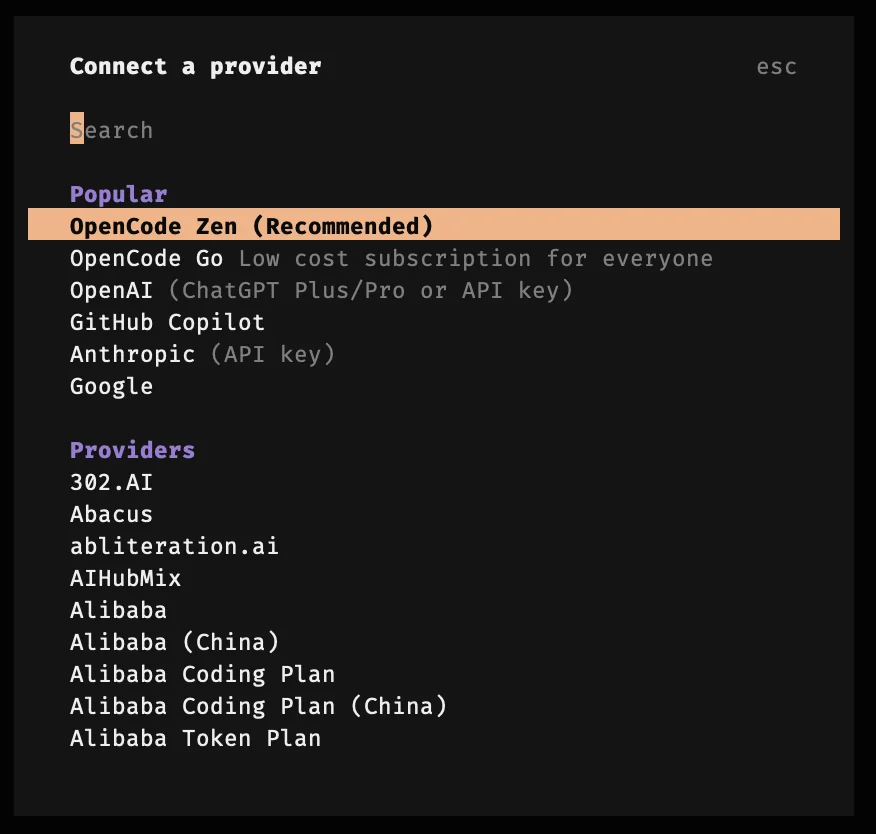
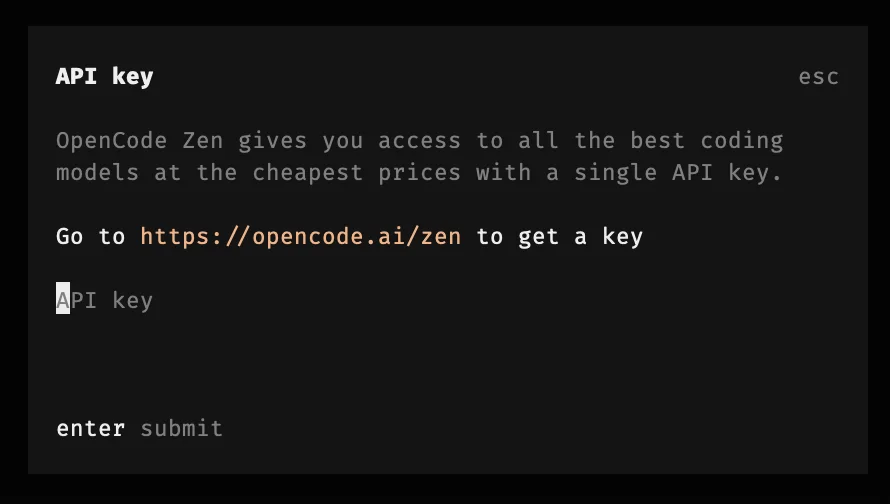
- It will then ask you for an API key: a long code that proves who you are, a bit like a password. To get one, open opencode.ai/zen in your browser and create a free account. No payment details are needed. Copy the key it gives you, paste it into the terminal, and press Enter.
- Finally, it will show you the list of models, with the free ones marked Free on the right. Pick one of those (as we said above, at the time of writing DeepSeek V4 Flash Free is an excellent choice). You can change model whenever you like by typing
/models.
Your first conversation
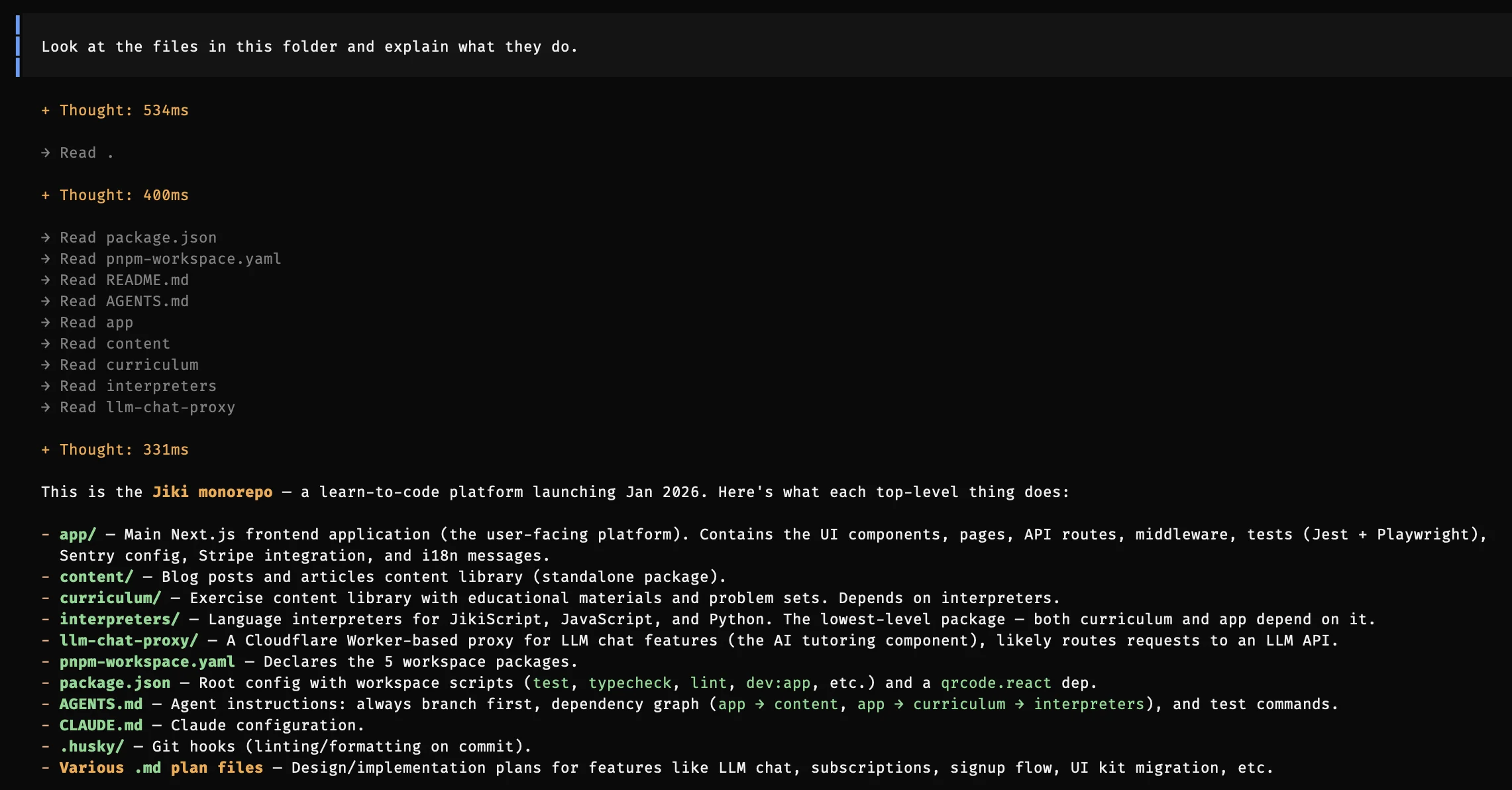
Now ask it something. Type a message like:
Look at the files in this folder and explain what they do.
Watch what happens. It will read files, think, and report back, and it will ask your permission before changing anything. That loop of reading, acting, and checking is the heart of agentic coding.
The same thing works in any terminal, with or without VS Code. Open a terminal, move into a project folder, type opencode, and you are off. Some people love working that way. Try both and see which suits you.
That is it. You now have a working agentic coding setup that costs nothing to run. To understand what is actually going on under the hood, and what words like tokens and context mean, carry on to key agentic coding concepts.